Ditch Big Tech: Build Your Own Private “Google Drive” in 15 Minutes
Disclosure: We are reader-supported. We earn commissions when you shop through links on our site. However, this does not affect our editorial independence, rankings, or the objectivity of our reviews.
⚡ The Quick Summary
Nextcloud Hub on DigitalOcean is the privacy-focused alternative to Google Workspace. Using the One-Click App marketplace, you can deploy a secure server with file storage, video calls, and chat in less than 15 minutes. No complex coding required.
Best For: Privacy Advocates, Developers, and Remote Teams who want to own their data.
We live in an era of convenience. We store our lives on Google Drive, coordinate our work in Slack, and hold our meetings on Zoom. But convenience comes at a price. You are paying with monthly subscriptions that constantly increase, and more importantly, you are paying with your privacy.
Your data lives on their servers, subject to their rules and automated scanning. What if you could take control back?
What if you could have the slick interface of Dropbox, the collaborative power of Google Docs, and the video conferencing quality of Zoom—but running on a private server that only you control?
Welcome to Nextcloud Hub. And thanks to DigitalOcean, you no longer need to be a Linux sysadmin to set it up.
What is Nextcloud (and why do you need it)?
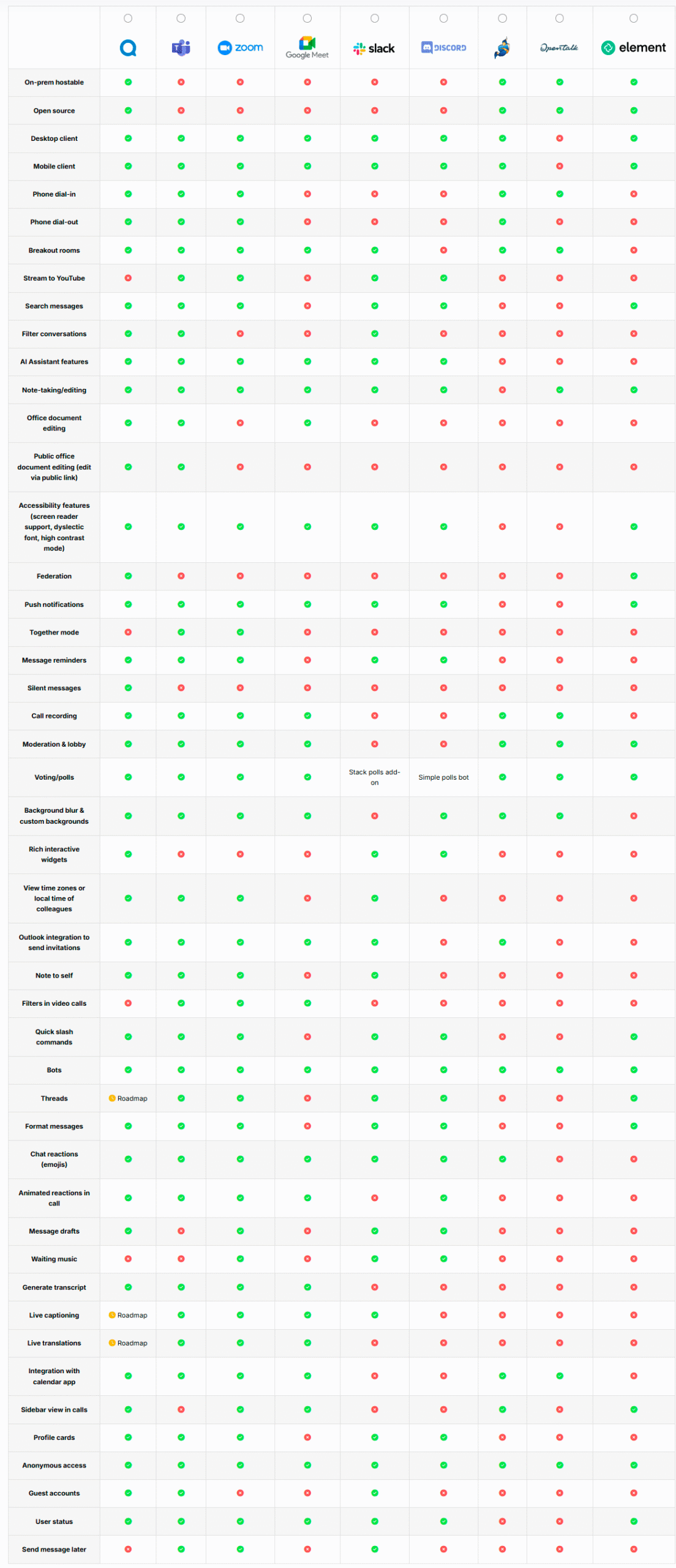
Nextcloud is the world’s most popular open-source collaboration platform. It’s a self-hosted powerhouse that replaces half the SaaS subscriptions you currently pay for:
- Nextcloud Files: Your private alternative to Google Drive/Dropbox. Sync files across all devices.
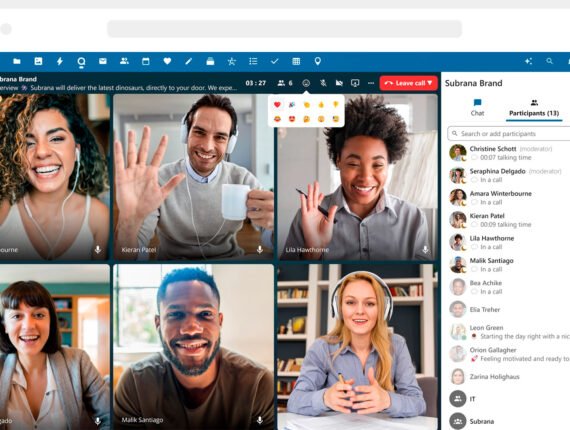
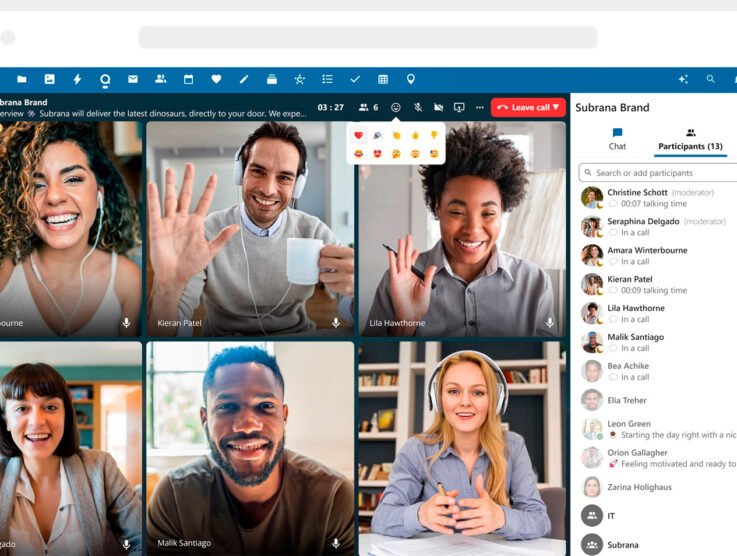
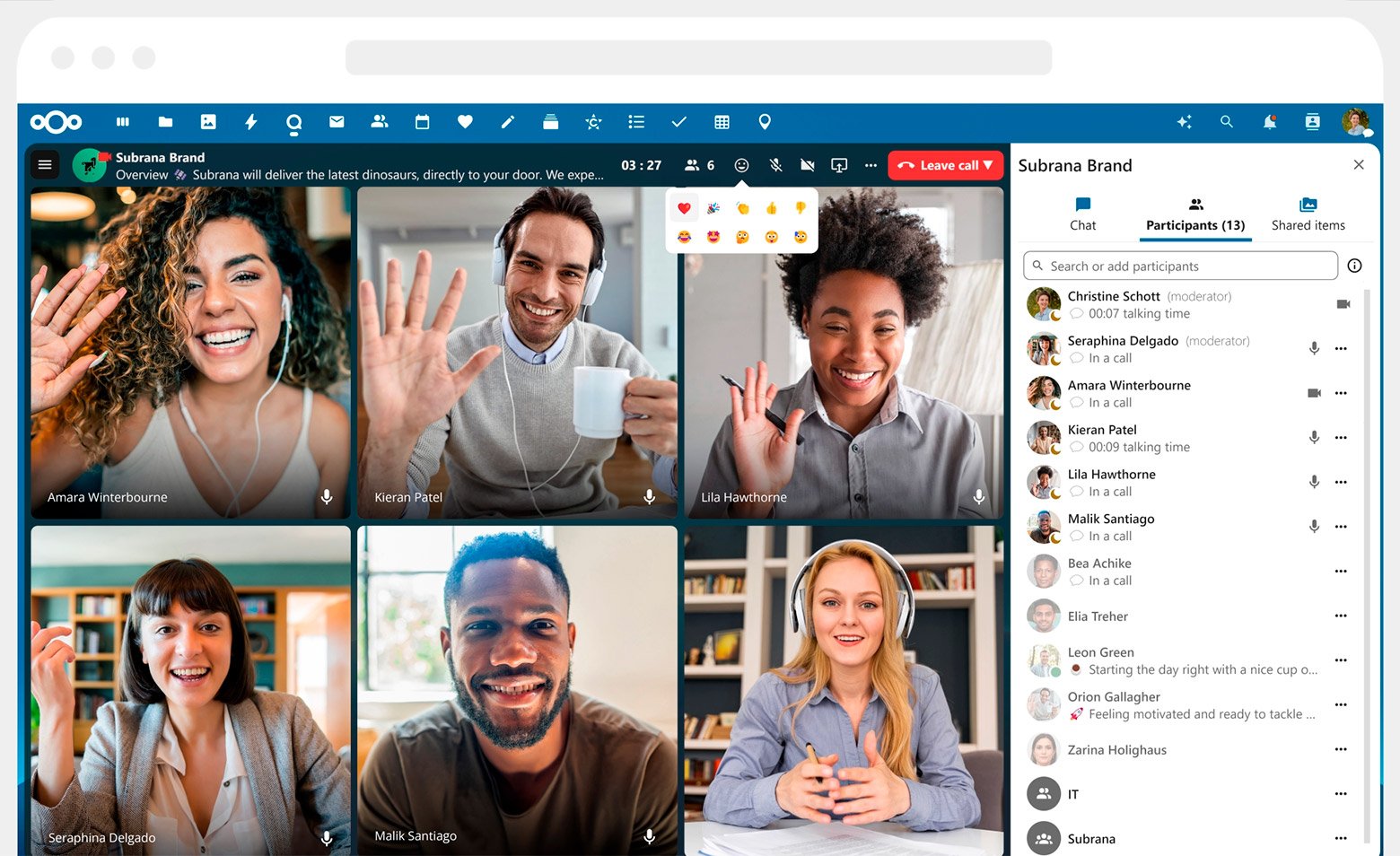
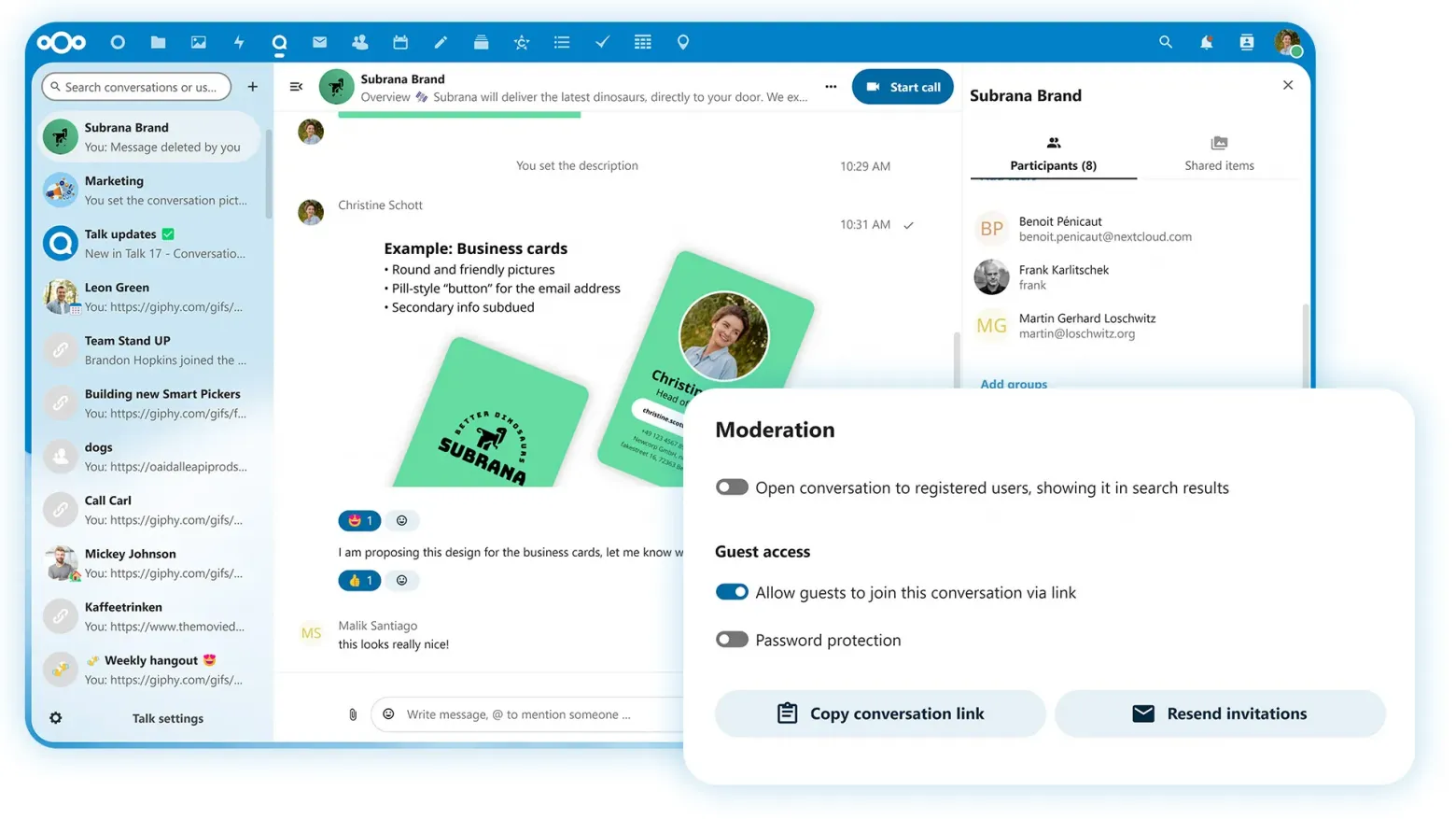
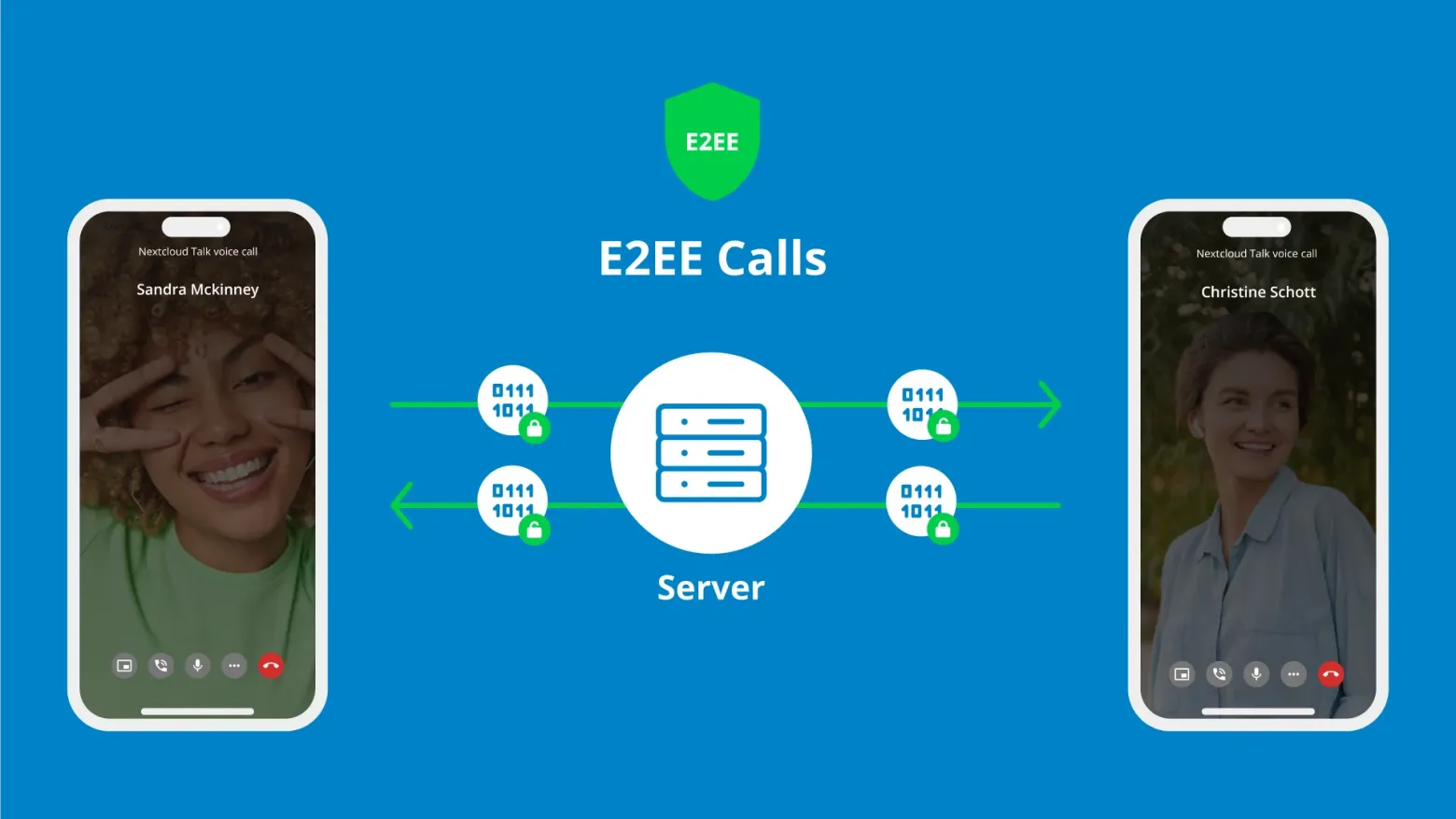
- Nextcloud Talk: Private audio/video conferencing and chat (your own secure Zoom/Slack).
- Nextcloud Groupware: Calendar, contacts, and mail integration.
Historically, setting this up meant buying a VPS, configuring databases, and wrestling with Apache. It was a headache. Not anymore.
The 3-Step Setup Guide
Create Your DigitalOcean Account
First, you need “land” to build your house on. In the cloud world, this is a VPS (Virtual Private Server), which DigitalOcean calls a “Droplet.” Unlike traditional hosting, DigitalOcean uses high-performance SSDs which makes Nextcloud incredibly fast.
💡 Exclusive Offer: If you are new to DigitalOcean, use the link below to test this setup.
Deploy the Nextcloud “Droplet”
This is where the magic happens. Forget the command line. Follow these exact steps:
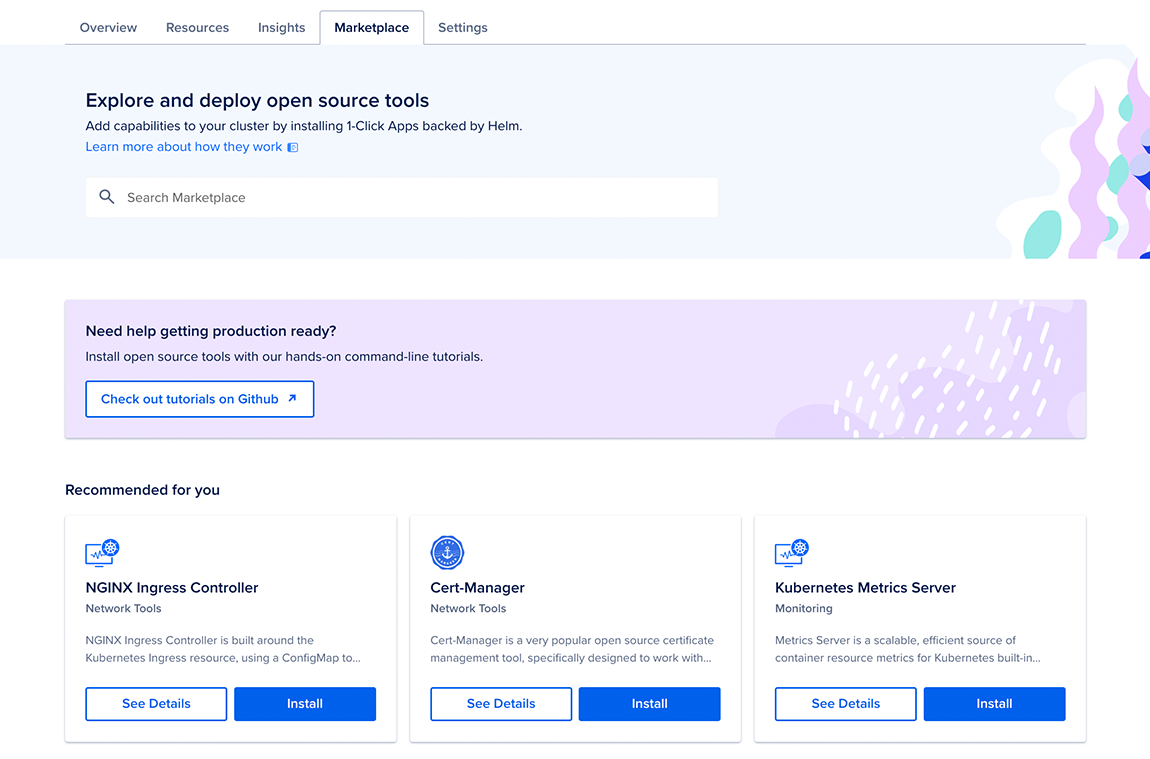
- Log into your new DigitalOcean dashboard.
- Click the green Create button and select Droplets.
- Crucial Step: Switch to the Marketplace tab (instead of OS). Search for “Nextcloud” and select the official image.
- Choose the Basic Plan. We recommend the $12/mo option (2GB RAM) if you plan to use video calls, or the $6/mo option for just file storage.
Hit Create Droplet. In about 60 seconds, your server will be live.
Final Configuration
Once the Droplet is created, click the “Access Console” button in your DigitalOcean dashboard. A black window will pop up inside your browser.
The automated setup script will run immediately. It will ask for your Domain Name and email to set up security. Just type them in and hit Enter.
Security Tip: When it asks to enable “Let’s Encrypt SSL”, type “Yes”. This gives you the secure green padlock.
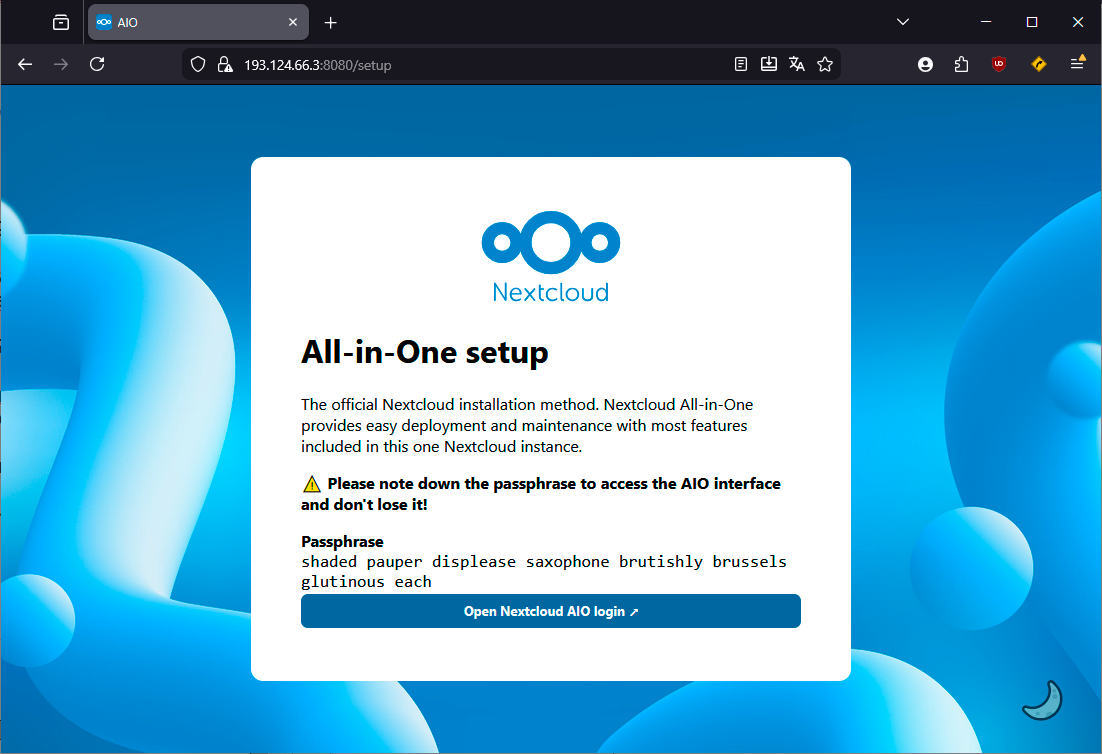
Finally, open your domain (or IP) in a new tab to create your Admin Account. Done!
Public Cloud vs. Private Cloud (Detailed Breakdown)
* Prices compared based on standard monthly business plans.
The CloudVerdict
You have successfully divorced Big Tech. You now have a professional, secure cloud environment accessible from anywhere—on desktop or via Nextcloud’s excellent mobile apps. It’s powerful, it’s secure, and thanks to DigitalOcean’s smart automation, it’s incredibly easy to build.
✅ Encrypted Chat
✅ Full Control